Controls in Dota 2 can mostly be customized in the Game Settings.
Hotkeys
The hotkeys settings can be accessed by clicking on the little  gear icon in the most top left corner in the main menu. Here, the player can customize many hotkeys, or select one of the many pre-set hotkey templates. Almost every key on the keyboard can be bound to something, with a very few exceptions. The exceptions usually have a set purpose in the game and thus are unbindable.
Some commands are <blank> because they have no default Hotkey bounded.
Unit Controls

Allied units glow in green and enemy units in red when having the mouse cursor on them.
The allied green glow turns blue when having color blind mode on.
 Left Click a unit selects the unit. If the unit is selectable, it gains a green glow (blue glow in color blind mode) if it is an ally, a red glow if enemy when the cursor is on their hitbox.
- Left Click+⇱⇲ Drag on the world creates a selection box. Upon letting the mouse key go, all the player's units within the box get selected.
- ⇧ Shift+ Left Click on an own unit adds the unit to your current selection group. Clicking on an already selected unit removes the unit from the selection group instead.
 Right Click
- On the ground when having units selected orders the units to move to the targeted point if possible.
- On an enemy when having units selected orders the units to attack the target if possible.
- On an ally when having units selected orders the units to follow the target if possible.
- ⇧ Shift+ Right Click or ⇧ Shift+ Left Click causes the order for the unit to get queued. This means the units will execute the order once they finish with their current order. This is also known as Shift-queue.
- Ctrl+ Right Click sends the order to the highlighted unit when having multiple units selected.
- Esc while having units selected which do not belong to you, will deselect that unit and select the latest unit you selected which is under your control.
Shift-queue
Shift-queue refers to the ability to assign several actions to the unit with ⇧ Shift, and it will complete one after another without needing any additional mouse clicks. It can be used to queue or to chain hero abilities and item usage with no lag time and efficiency.
A green flag action queue indicator will appear on the map where the command is shift-queued indicating the next possible action.
The hotkey for shift-queue can be
- ⇧ Shift+ Right Click
- ⇧ Shift+ Left Click
- ⇧ Shift+Hotkey+ Left Click
Interface
The Head-up display, or Heads-up display, or simply HUD is the Dota2 in-game interface. Its appearance can be customized with HUD Skins.
Minimap
- Right Click anywhere on the minimap will command the hero to move to that location. However, there is a delay of 0.2 seconds, where clicks will not be registered. This is to prevent miss-clicks.
- Left Click on the minimap while using Town Portal Scroll or Boots of Travel will teleport the hero to the specified location's nearest allied building.
- Ground-targeted abilities, such as Wrath of Nature, can be cast by clicking on the minimap.


Communication
A list of possible ways to send a ‼ Ping notification to your team mates.
Ground Ping
- Alt+ Left Click
- On the minimap will alert your team about a location by ▶️ playing a sound and showing an ‼ Ping exclamation mark on their minimap.
- On buildings will play a different sound depending on the building's alliance, and generally mean a ▶️ defense or ▶️ attack of the building is desired.
- On enemy heroes will play the same sound as on enemy buildings, typically to announce the desire to attack.
- Ctrl+Alt+ Left Click on the minimap will alert your team by ▶️ playing a different sound and showing an ✖ Ping (Danger) on their minimap, generally indicating danger.
Inventory Ping
- Alt+ Left Click on an item in the main inventory tells your team whether the item is ready or not. When the item is not ready, it announces the remaining cooldown and/or how much more mana it needs to be cast.
- When ready, Smoke of Deceit, Arcane Boots, Mekansm, Pipe of Insight, Guardian Greaves, and Crimson Guard broadcast a gather message to allies and ▶️ ‼ Ping your location.
- Items in the backpack announce that they are in the backpack. Items which got just moved from the backpack to the main inventory announce the downtime like a cooldown.


Abilities Ping
- Alt+ Left Click the Town Portal Scroll slot while it is empty announces that it is empty, together with its current cooldown.
- This can be done on allies and enemies as well, however, it does not reveal the enemy's cooldown).
- Alt+ Left Click on an ability tells your team whether the ability is ready or not. When the ability is not ready, it announces the remaining cooldown and/or how much more mana it needs to be cast.
- When the ability is not learned yet, but having a skill point available, Alt+ Left Click tells your team the ability is ready to be learned if learnable.
- When not learned and not having skill points, Alt+ Left Click tells the team how much experience is required for the next level to learn it, if it can be learned on the next level. If it can't be learned on the next level, tells the team how many levels you need to learn it.
- When the ability is not learned yet, but having a skill point available, Alt+
Lanes Ping
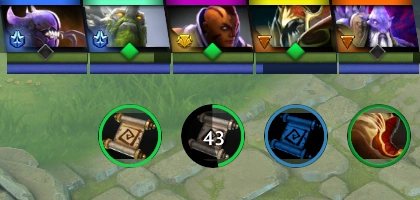
Hero top icon. Alt+⤓ Hold indicates their Town Portal Scroll availability.
Hero Top Icon
Alt+ Left Click
- On an enemy hero's top icon will alert your team that said hero is missing from their respective lane.
- Ctrl+Alt+ Left Click on the top icon will alert your team that the hero has returned to their lane.
- Ctrl+Alt+
- On a dead enemy's icon in the top bar will announce that they are dead, and when they will respawn.
- On a unit's health and mana bars declares the current health and mana.
- Ctrl+Alt+ Left Click on a unit's health and mana bars declares the current raw health and mana values.
- Ctrl+Alt+

Alt+ Left Click message of Track debuff.
Buffs & Debuffs
Alt+ Left Click
- On buffs and debuffs on self or enemies announces them to your team.
- On Track's debuff on enemies announces their current Gold
 in the chat.

Buyback Status
Alt+ Left Click
- On your respawn timer announces your respawn time to your team.
- On on your gold will alert your team that buyback is ready or needed gold for buyback.
Game Status
Alt+ Left Click
- On the Glyph button will announce its status.
- Ctrl+Alt+ Left Click the button will suggest not using the Glyph yet.
- Ctrl+Alt+
- On the Game Clock will declare the current game time.
Chat Wheel
To send a message using the Chat Wheel, hold down the hotkey and move your mouse in any of the eight given directions. When you release the Hotkey, the message will be sent to your teammates. Messages sent from the Chat Wheel have a ▶ distinctive arrow in front of them and appear in players' local language setting, making it an invaluable tool for communicating with players who do not speak your language. Muted players can still use the Chat Wheel.
To change the phrases or the Chat Wheel hotkey, navigate to the CONTROLS tab of the OPTIONS screen and click CHAT. It is also possible to bind individual Hotkeys to the default Chat Wheel phrases there.
Shop
- Right Click an item purchases it if the player has sufficient gold and is at a shop location. If the player does not have enough gold or is too far from a shop, nothing will occur.
- Left Click an item displays all related items. The items used in its creation are displayed underneath, while items that can be created with it are displayed above.
- Alt+ Left Click an item declares to allies that you intend to purchase it.
- Ctrl+Alt+ Left Click an item suggests your allies to purchase it.
- Alt+
Quickbuy Bar
- ⇧ Shift+ Left Click an item displays it on the Quickbuy bar.
- Ctrl+⇧ Shift+ Left Click an item appends (not replace) it to the Quickbuy bar.
- Ctrl+⇧ Shift+
- Alt+ Left Click the Quick Buy area declares how much gold is needed to complete the item.
Inventory
- Right Click an item shows the option menu for it (Almost every item can be Sold, some items can be Disassembled, and while in the fountain, almost all items can be Moved to Stash).
- Left Click an item uses the item's active ability.
Alt+ Left Click
- On an item declares the item's status to allies (Either available, on cooldown, or lacking mana).
- On a Bottle will declare any Runes stored in the bottle.

Observer and Sentry Wards
- Ctrl+ Left Click an item and a hero after it gives a single copy of a stacked item to the hero ( Observer Ward and Sentry Ward only).


Dragging Items
 Mouse+⇱⇲ Drag
- Dragging an item on a hero removes the item from the player's inventory and transfers it to the selected hero. If the hero has no inventory space, the item will fall to the ground.
- Dragging an item on ground removes the item from the player's inventory and leaves the item on the ground.
- Dragging an item on a shopkeeper sells the item if the player is within range of a shop.
Camera
Moving the Camera
Similar to a pure RTS game, players can move their camera around the entire map and see what is happening in different locations of the map. However, the Fog of War will prevent the player from seeing most areas of the map, and will only be revealed when allied units are nearby, or with abilities that provide vision.
The camera can be controlled in 4 different ways:
 Mouse+Move to the edges or corners of the screen causes the camera to move in the direction of the edge or corner. This way, the camera can be moved into the 8 cardinal directions.
 Middle Click+⤓ Hold+⇱⇲ Drag grips and moves the game camera. The camera moves into the opposite direction in which the mouse moving. This way, the camera can be moved freely into any direction.
- Camera Grip Hotkey+ Left Click+⇱⇲ Drag functions the same way as dragging the camera with the middle mouse key, as an alternative.
- The Hotkey is not assigned by default.
- Using the assigned Hotkeys which are commonly assigned to the ↑↓←→ or WASD. This way, the camera can also be moved into the 8 cardinal directions.
Zoom
Besides moving the camera, it is also possible to zoom in and out. However, this has no great use in matches, since the camera is by default at maximum distance and can only be zoomed in a bit. In spectator mode, the camera is by default at the same distance as the camera is when playing. However, this distance is the minimum distance for spectators. As a spectator, the camera can be zoomed out by a lot, granting a better view of the map.
- ↕ Scroll Wheel causes the camera to zoom in when scrolling up, and zooming out when scrolling down.
Patch History
- Ctrl+ Left Click or Alt+ Left Click health bars now correctly messages raw health or mana values of the target to the rest of your team.
- Fixed a variety of consistency issues with Alt+ Left Click
modifier messagesnot being worded from the point of view of the person sending them.
- Changed how commands are processed in Dota to address some user input contention and improve responsiveness.
- Previously if you cast an ability and before it finished casting, you cast two abilities afterwards, only the last ability would be cast. The order queue was only 1 deep effectively. This usually has no practical impact, except for things with really fast/instant cast time done in sequence.
- Axe casts Battle Hunger. While the cast animation is playing, Axe quickly uses a Blink Dagger and then Berserker's Call.
- Old Rules: Only Berserker's Call is cast. The Blink Dagger order is ignored.
- New Rules: Axe will use the Blink Dagger, then cast Berserker's Call.
- Puck casts Illusory Orb. Puck then casts Dream Coil. While the cast animation of Dream Coil is playing, Puck quickly casts Ethereal Jaunt and Waning Rift.
- Old Rules: Only Waning Rift would have triggered and Puck would not have teleported with Ethereal Jaunt.
- New Rules: Puck teleports with Ethereal Jaunt and then casts Waning Rift in the new location.
- This change applies generally to all orders that are issued when your hero is in another action (like during a cast animation or while stunned), and the order needs to enter the queue. Issuing a movement command or stop will still empty the queue same as before, if you decide you no longer want to issue the orders in the queue.


See Also
| |||||||||||||||||||||||